


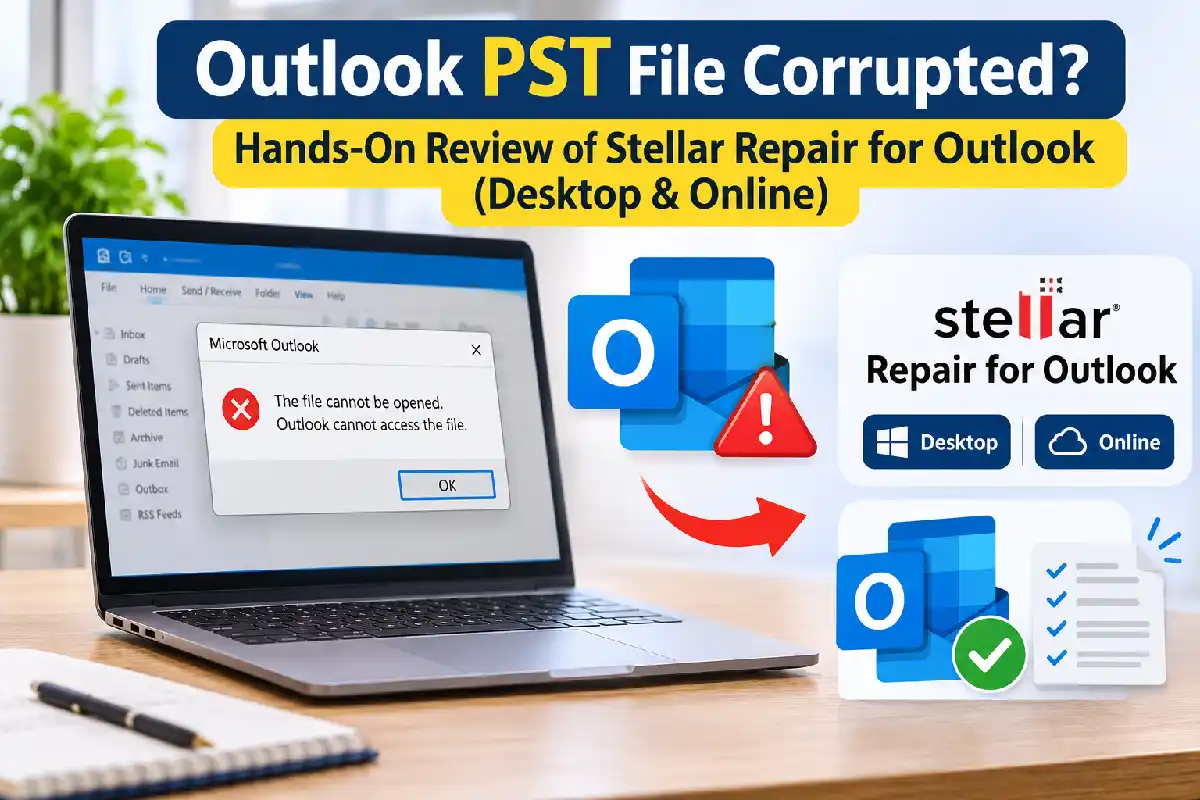
Microsoft Outlook is one of the most widely used email clients for personal and business communication, but it has one weakness that almost every long-term Outlook user encounters eventually: PST file corruption.
One day Outlook works normally. The next day it refuses to open, displays an error message like “Outlook Data File Cannot Be Opened,” freezes during startup, or suddenly shows missing emails and mailbox folders.
If you’ve ever experienced this issue, you know how stressful it can be.
Your PST file contains years of valuable information, including:
- Business emails
- Attachments
- Contacts
- Calendar entries
- Tasks
- Notes
- Archives
When Outlook can no longer access that file, productivity comes to a halt.
After facing corruption issues with a large Outlook data file, I decided to test both solutions offered by Stellar:
- Stellar Repair for Outlook Desktop
- Stellar Online PST Repair
Both tools are designed to recover data from corrupted Outlook PST files, but they take very different approaches. In this review, I’ll share my hands-on experience, compare the two versions, discuss features, pricing, use cases, specifications, and explain which version is better suited for different users.
Why PST Files Become Corrupted
Before discussing the software, it helps to understand why PST corruption occurs.
Common causes include:
If Windows shuts down unexpectedly while Outlook is writing data to the PST file, corruption can occur.
1.Oversized PST Files
Large mailbox files often become unstable over time and may affect Outlook performance.
2.Outlook Crashes
Repeated Outlook crashes can damage mailbox indexes and internal file structures.
3.Storage Drive Problems
Bad sectors on HDDs or SSDs can damage Outlook data files.
4.Malware or Software Conflicts
Third-party add-ins, antivirus interruptions, and malware can contribute to PST corruption.
5.Network & Synchronization Issues
Interrupted synchronization processes often leave mailbox files in an inconsistent state.
When corruption occurs, users may experience:
- Outlook won’t launch
- PST file won’t open
- Missing emails
- Missing folders
- Outlook freezes
- ScanPST fails
- “Outlook Data File Cannot Be Accessed” errors
This is where Stellar’s PST repair solutions come into the picture.
What Is Stellar Repair for Outlook?
This is a PST repair solution designed to recover mailbox data from damaged, inaccessible, corrupted, encrypted, and password-protected PST files.
The product is available in two formats:
Desktop Software
A Windows application installed locally.
Online PST Repair
A browser-based service that repairs PST files without software installation.
Both versions can help recover:
- Emails
- Attachments
- Contacts
- Calendars
- Tasks
- Notes
- Journal Entries
Product Specifications
Stellar Repair for Outlook – PST
| Specification | Details |
| Version | 14.0.0.1 |
| License | Single System |
| Editions | Professional, Technician, Toolkit |
| Languages Supported | English, Deutsch, Français, Italiano, Español, 日本語 |
| Release Date | June 2026 |
| Processor | Intel Compatible (x64) & Snapdragon |
| Memory | 8 GB Minimum (16 GB Recommended) |
| Storage | 250 MB Installation Space |
| Operating System | Windows 11, 10, 8.1, 8 (64-bit) |
Testing Stellar Repair for Outlook Desktop
I started with the Stellar Repair for Outlook (desktop version) because my test PST file was quite large. Installation was straightforward and took only a few minutes.
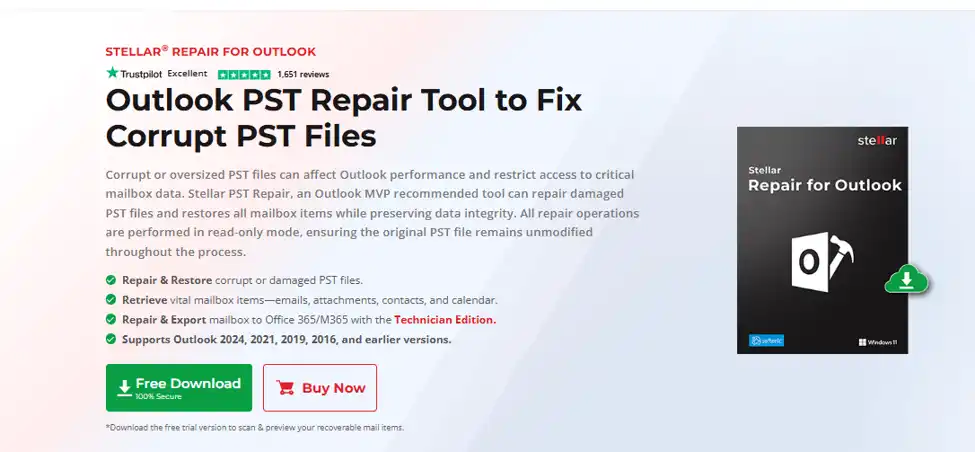
The interface immediately felt clean and professional.
Unlike many recovery tools that overwhelm users with technical jargon, Stellar keeps the workflow simple.
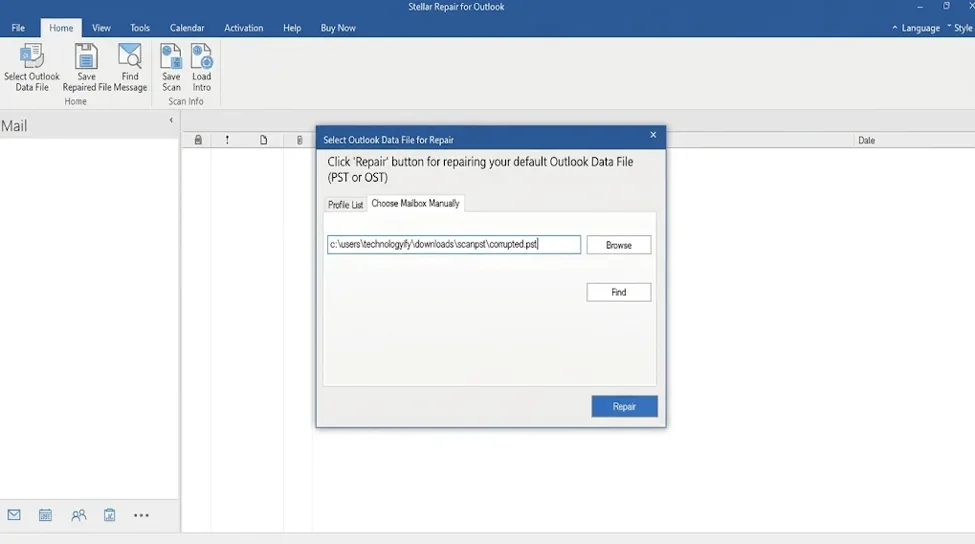
Step 1: Select PST File
The software automatically searches for Outlook PST files on the machine, but users can also manually browse and select files.
Step 2: Scan
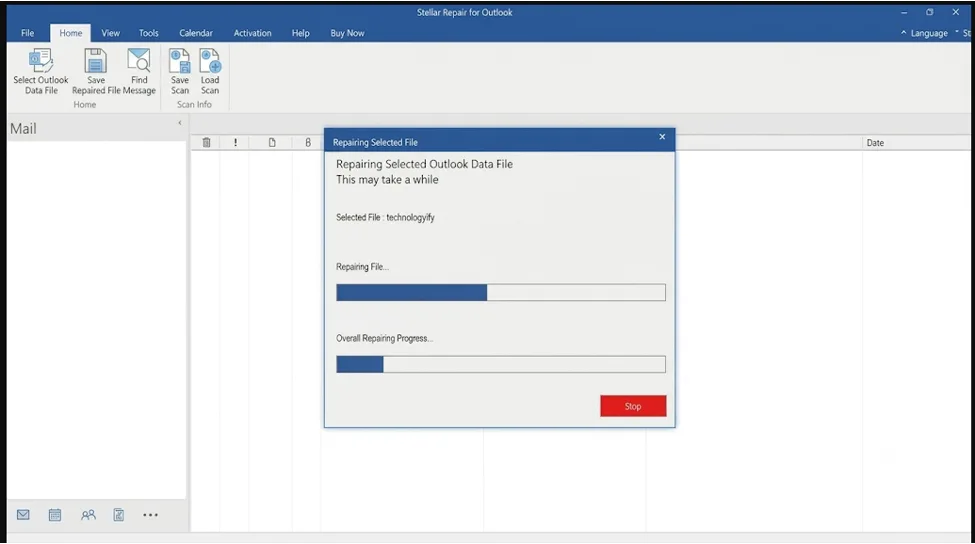
After selecting the corrupted PST file, the scan process began.
The application analyzed the mailbox structure and rebuilt recoverable data.
Step 3: Preview
This was one of my favorite features.
Before saving anything, I could preview:
- Emails
- Attachments
- Folder structure
- Contacts
- Calendar entries
- Notes
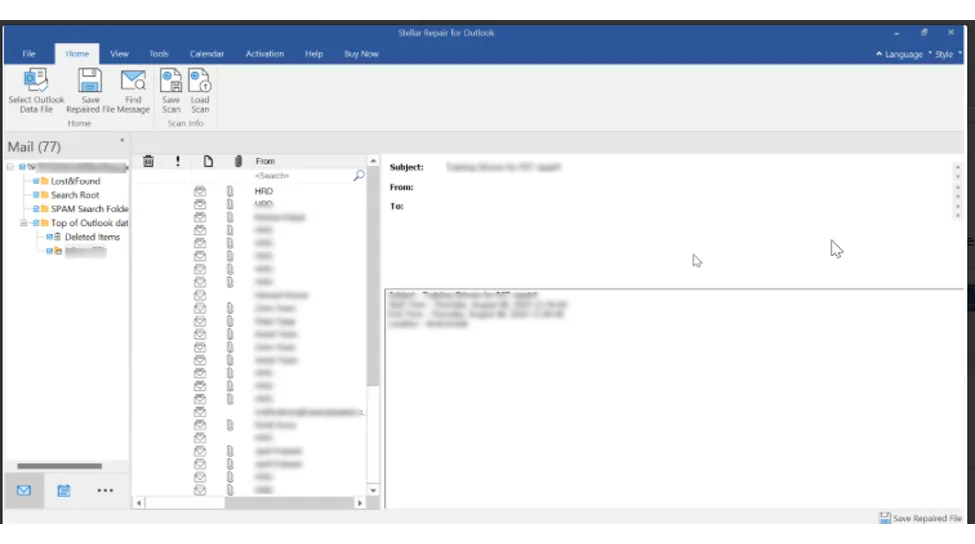
This provides confidence that the recovery is actually working.
Step 4: Save Repaired Mailbox
Once satisfied with the results, the recovered mailbox can be saved.
The repaired PST can then be opened normally within Outlook.
Features That Stood Out
Repairs Severely Corrupted PST Files
The software is designed to repair PST files regardless of corruption level.
Supports ANSI & Unicode PST Files
Useful for organizations working with older and newer Outlook versions.
Password-Protected PST Support
A feature many competing tools don’t handle well.
Maintains Folder Structure
Recovered data remains organized exactly as it was originally.
Recovers Deleted Emails
Deleted mailbox items are highlighted and recoverable.
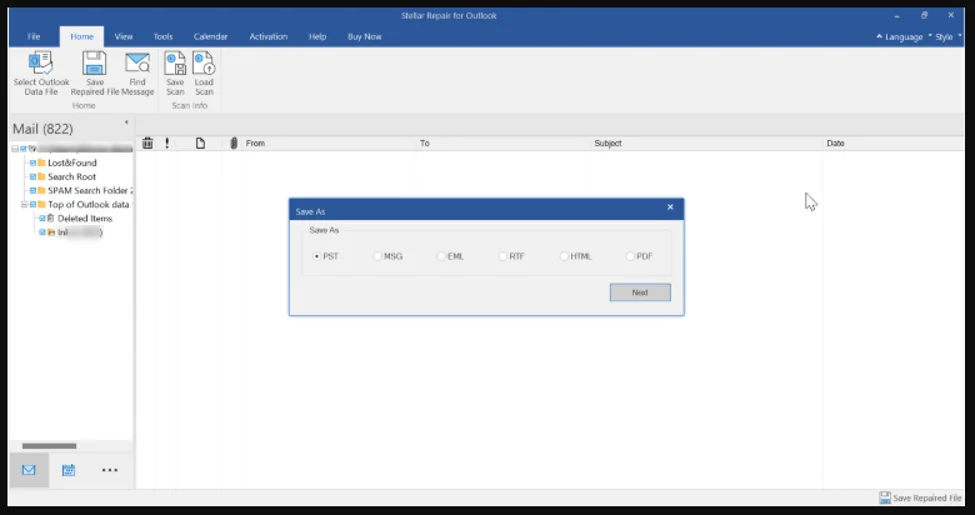
Multiple Save Formats
Recovered data can be saved as:
- PST
- MSG
- EML
- HTML
- RTF
Microsoft 365 Export
Available in technician-level editions.
Testing Stellar Online PST Repair
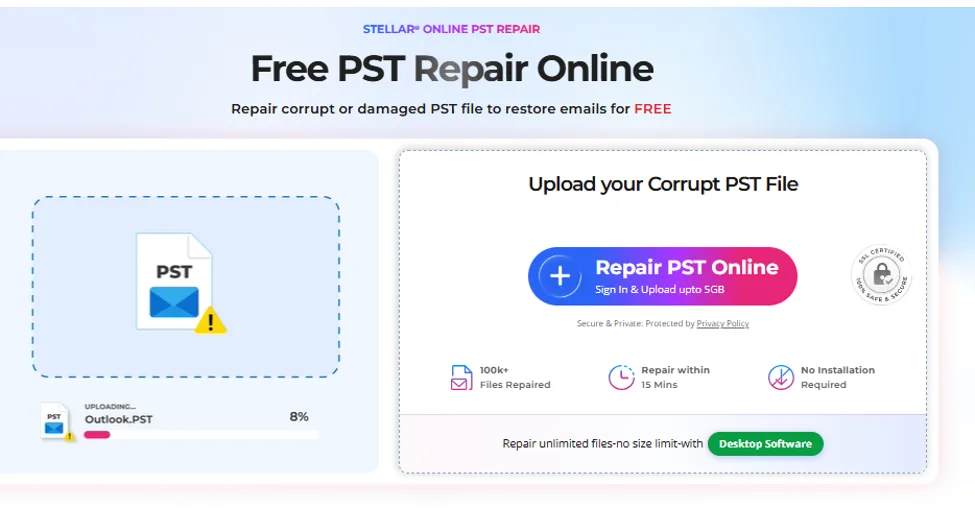
After using the desktop software, I moved on to the online version.
The experience was very different.
Instead of installing software, everything happens within the browser.
This makes it ideal for users who need immediate access to a repair tool.
Upload Process
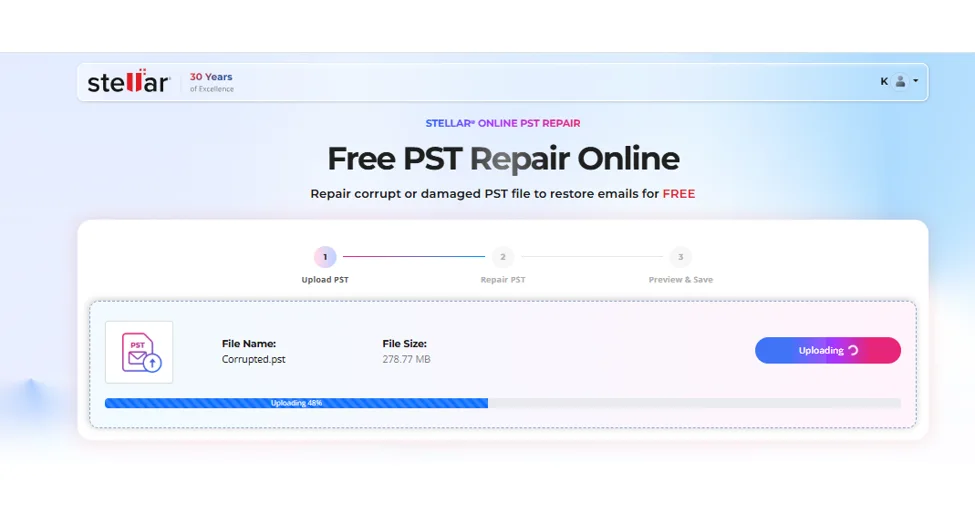
The online platform guides users through uploading the damaged PST.
The interface is clean and beginner-friendly.
Automatic Processing
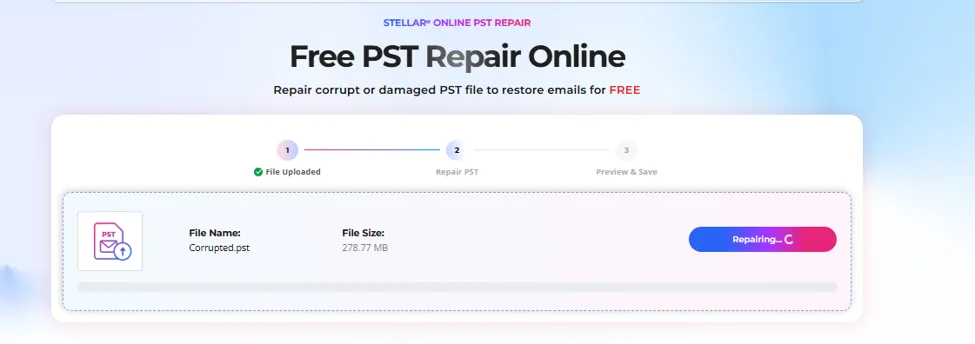
Once uploaded, the repair process begins.
The system automatically analyzes the mailbox and prepares recovered data.
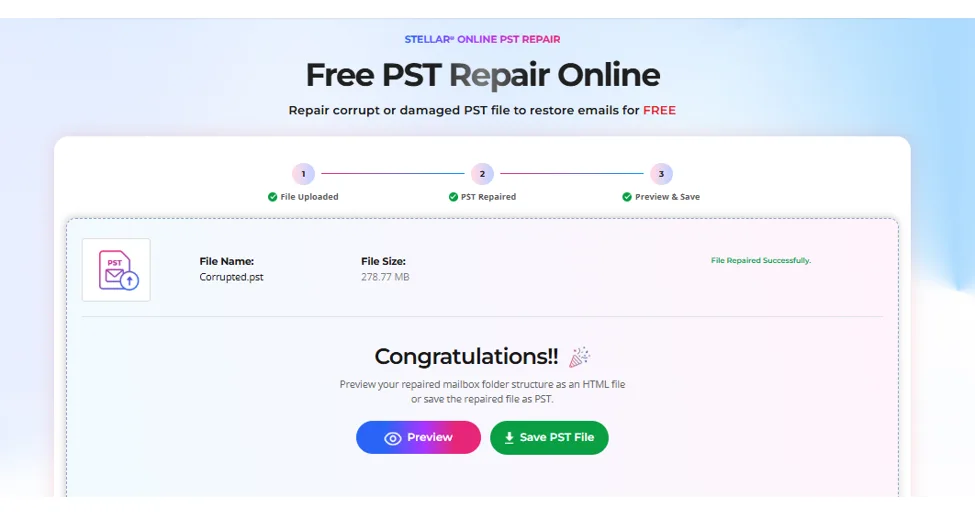
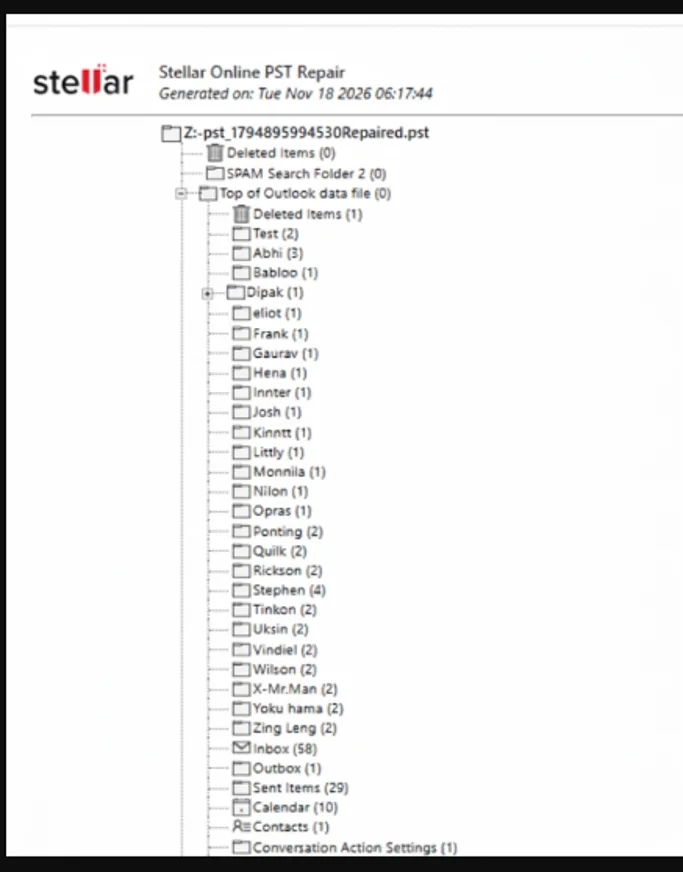
Preview Feature
Users can preview mailbox folders and item counts before downloading the repaired file.
The process felt significantly simpler than traditional PST recovery methods.
What I Liked About the Online Version
- No installation required
- No technical knowledge needed
- Outlook not required
- Works directly through browser
- Ideal for one-time recovery jobs
- Quick upload and recovery process
For non-technical users, this version may actually be the better choice.
Online Plans and File Size Limits
The online service offers two primary options.
Free Plan
- Repair 1 PST file
- Supports up to 500 MB
- Preview recovered mailbox
- Download repaired data
- No credit card required
Premium Plan
- Supports one PST file
- File size up to 5 GB
- Approximately $29.99 per file
- Extended file availability
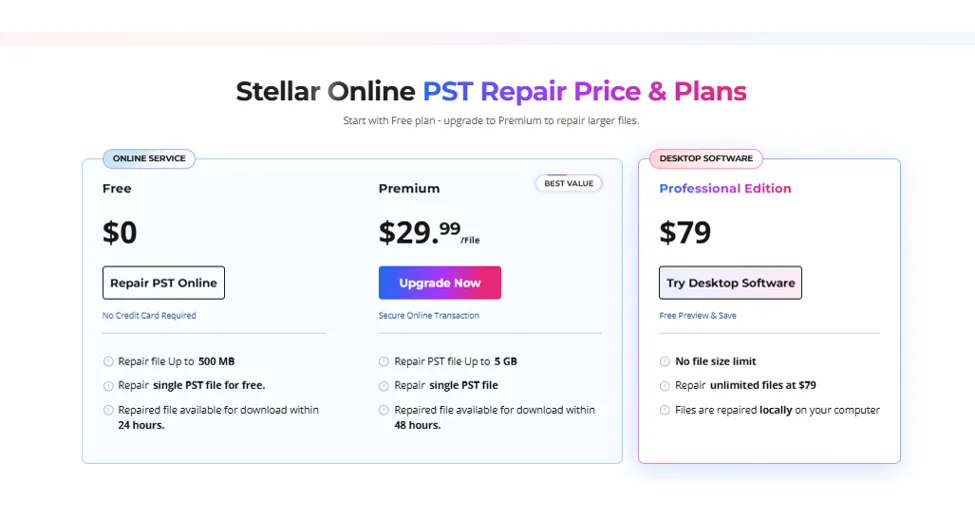
For larger PST files, the desktop application becomes the better option.
Desktop vs Online: Which Should You Choose?
| Feature | Desktop | Online |
| Installation | Required | Not Required |
| Browser Based | No | Yes |
| Outlook Required | No | No |
| Large PST Support | Yes | Up to 5 GB |
| Password Protected PST | Yes | Limited |
| ANSI PST Support | Yes | Not Specified |
| Unicode PST Support | Yes | Not Specified |
| Multiple Save Formats | Yes | Limited |
| Microsoft 365 Export | Yes | No |
| Best For | IT Pros & Frequent Recovery | Occasional Users |
Pricing Breakdown
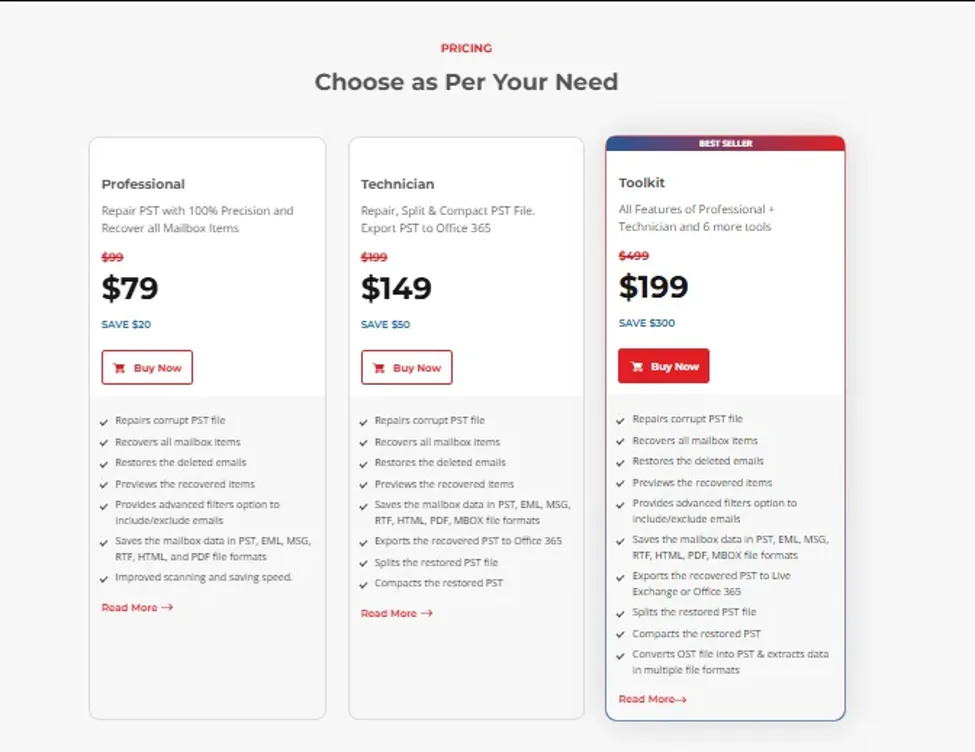
Professional Edition
Starting around $79
Includes:
- PST repair
- Email recovery
- Attachment recovery
- Preview functionality
- Multiple export options
Technician Edition
Starting around $149
Adds:
- Office 365 export
- PST split feature
- PST compact feature
Toolkit Edition
Starting around $199
Complete Outlook management suite including additional utilities.
Best Use Cases
Business Professionals
The Professional desktop edition offers better long-term value.
IT Administrators
Technician or Toolkit editions provide enterprise-grade features.
Legal & Financial Firms
Desktop versions provide additional control over sensitive mailbox data.
MSPs and Service Providers
Technician Edition offers greater flexibility for handling multiple recovery scenarios.
Pros and Cons
Pros
- Available in Desktop and Online versions
- Supports multiple Outlook versions
- Recovers emails, contacts, attachments, calendars, tasks, and notes
- Password-protected PST support
- Maintains folder hierarchy
- Microsoft 365 export options
- User-friendly interface
- Preview before recovery
- Supports large PST files
Cons
- Online version limited to smaller files
- Premium features require higher editions
- Large mailbox scans can take time
Final Verdict:
After evaluating both versions, I found that Stellar offers two distinct approaches to PST file recovery, catering to different technical requirements.
Stellar Online PST Repair is suitable for single-file PST recovery, offering browser-based processing, no software installation, and support for PST files up to 5 GB with a Premium plan.
Stellar Repair for Outlook Desktop provides more comprehensive recovery capabilities, including support for ANSI and Unicode PST files, password-protected files, deleted email recovery, multiple export formats, and Microsoft 365 export in supported editions. It is particularly suited to IT administrators, businesses, and professionals handling large or complex mailboxes.
My recommendation: Choose the online solution for straightforward PST repair tasks, while the desktop application is a better fit for advanced recovery requirements, larger mailboxes, and greater export flexibility.
Overall, both solutions provide practical options for restoring access to corrupted Outlook data files, depending on file size, recovery complexity, and operational requirements.