


An Exchange administrator needs to export a former employee’s mailbox before an upcoming migration. The command looks straightforward: specify the mailbox, point to a network share, and run New-MailboxExportRequest.
But the request fails.
The admin checks the command again, changes the destination path, and retries. It still shows Failed. In another common situation, the Exchange server has already been decommissioned after a migration or hardware failure, and the only copy of the mailbox data is an old EDB file. In that case, New-MailboxExportRequest cannot be used at all because there is no live Exchange database to export from.
Both scenarios are common, but they require different solutions.
This guide explains what is New-MailboxExportRequest, why it fails, how to troubleshoot common errors, and how to convert an offline EDB file to PST when the native Exchange method is no longer an option.
What is New-MailboxExportRequest?
New-MailboxExportRequest is an Exchange Management Shell cmdlet used to export mailbox content to PST files. Administrators commonly use it for archiving, migrations, compliance requests, and mailbox backups.
However, the cmdlet depends on several requirements. You need the correct permissions, a reachable network share, a healthy and mounted mailbox database, and valid command syntax. If one of these requirements is missing, the export request can fail.
The process becomes more complicated when the Exchange environment itself is unavailable. If you only have an offline EDB file from a decommissioned server, crashed system, or old backup, the cmdlet cannot help because it works only with mailboxes in a live Exchange environment.
Why New-MailboxExportRequest Fails
A failed export request usually traces back to one of these causes:
- Missing permissions. The account running the command does not have the Mailbox Import Export management role.
- Inaccessible file path. The UNC share for the PST file does not exist, or Exchange Trusted Subsystem lacks permission to write to it.
- Mailbox problems. The mailbox is corrupt, disconnected, or does not contain the data being requested.
- Database issues. The database is inconsistent, dismounted, offline, or the name used in the command does not exist.
- Syntax and parameter errors. A typo, a wrong switch, or an invalid filter stops the request.
- Bad content filters. Date formats that do not match the server’s regional settings are a frequent culprit.
- Insufficient disk space. Either the server or the destination share runs out of room mid-export.
- Server-side problems. Service failures or resource constraints on the Exchange server.
How to Find Out What Went Wrong
Step 1: Check the status of your requests
Run Get-MailboxExportRequest to see which requests are queued, in progress, completed, or failed.
Get-MailboxExportRequest
Step 2: Clear completed requests
Completed requests stay in the list until you remove them, so failures can get buried. Clear the finished ones to leave only the failed requests visible.
Get-MailboxExportRequest -Status Completed | Remove-MailboxExportRequest
Step 3: Pull a detailed failure report
Use the statistics cmdlet with the report switch and write the output to a text file you can search.
Get-MailboxExportRequest -Status Failed | Get-MailboxExportRequestStatistics -IncludeReport | Format-List > \\ex01\pstfiles\report.txt
Open the file and look at the Failure Type and the log entries that follow. Names such as InvalidContentFilterPermanentException point straight to the problem, in this case a content filter that is not valid. A message saying the mailbox database cannot be connected to usually means the database name is wrong, or the database is not available.
Fixes to Try Before Switching Methods
- Verify the role assignment. Confirm your account holds the Mailbox Import Export role:
Get-ManagementRoleAssignment -Role “Mailbox Import Export” | fl User
If it does not, assign it:
New-ManagementRoleAssignment -Role “Mailbox Import Export” -User “YourUserName”
- Check the shared folder. Create or choose a network share that exists, has free space, and gives Exchange Trusted Subsystem read and write access.
- Review syntax and filters. Re-read the command carefully. If you use -ContentFilter, make sure the date format matches the server’s regional settings.
- Check the database state. You cannot export from a dismounted or offline database. List your databases, then check the one in question:
Get-MailboxDatabase
Get-MailboxDatabase -Identity “DatabaseName” -Status | fl Name,Mounted
If it is dismounted, mount it and run the export again.
- Re-run the request. After correcting the issue, remove the failed request and submit a new one.
When the Native Method Is Not the Answer
Troubleshooting is worth the effort when the server is healthy and the problem is a permission, a path, or a typo. In other cases, no fix is available through the cmdlet:
- The Exchange Server is decommissioned, crashed, or no longer exists.
- You only have an offline or legacy EDB file, for example from an old backup.
- The database cannot be mounted because of corruption or a dirty shutdown.
- The mailbox is disconnected or its data cannot be reached by the cmdlet.
- You lack the administrative rights or the time needed to restore an Exchange environment just to export a few mailboxes.
- The export keeps failing even after you have checked every item above.
In each of these cases, the more practical route is to read the EDB file directly and save the mailbox data as PST. That is what Stellar’s Online EDB to PST Converter does.
Convert EDB to PST Online with Stellar Online EDB Converter
Stellar Online EDB to PST Converter is a browser-based service that extracts mailbox data from an EDB file and returns it as PST files. Because the work happens in the browser and on Stellar’s servers, you do not need Exchange Server running, and you do not need Outlook installed.
What it extracts
The converter pulls out the mailbox content stored in the EDB file, including emails with attachments, calendars, contacts, tasks and notes, while keeping the folder hierarchy intact. The original EDB file is not modified during conversion.
Supported Exchange versions
The service works with EDB files created in Exchange Server 5.5, 2000, 2003, 2007, 2010, 2013, 2016, 2019 and SE, so both very old and current databases are covered.
Key features at a glance
- Free conversion up to 500 MB, with no credit card required
- No Exchange Server or Outlook needed
- Preview before you download. Browse mailbox folders and item counts first
- Mailbox integrity preserved, including folder structure
- Individual PST files delivered per mailbox in a ZIP archive
- Works in major browsers: Chrome, Edge, Firefox and Safari
- Secure processing: encrypted upload, automated processing without human intervention, and automatic deletion of your data after 24 hours (Free) or 48 hours (Premium)
How to Convert EDB to PST Online: Step by Step
Step 1: Sign in and Upload your EDB file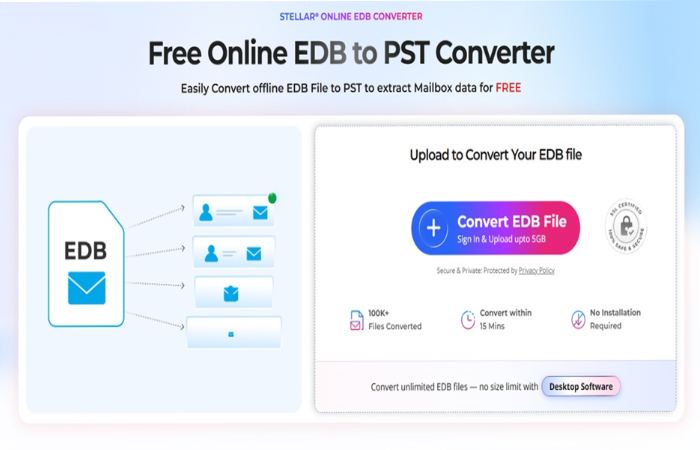
Step 2: Let the file be analyzed and converted in fully automatic environment.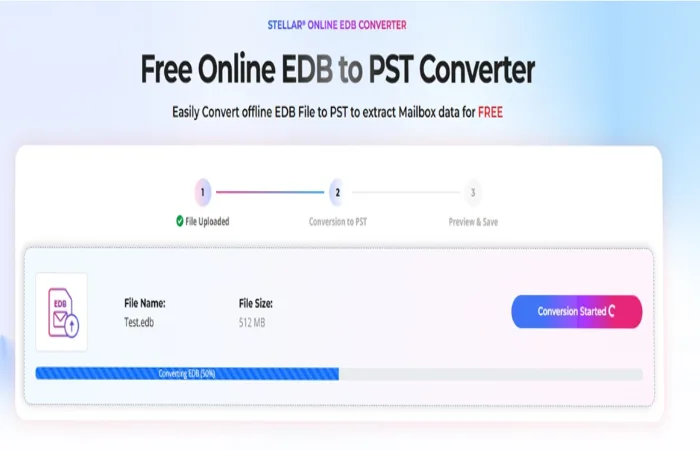
Step 3: Preview and Download the mailbox folders and items. as individual PST files in one ZIP archive.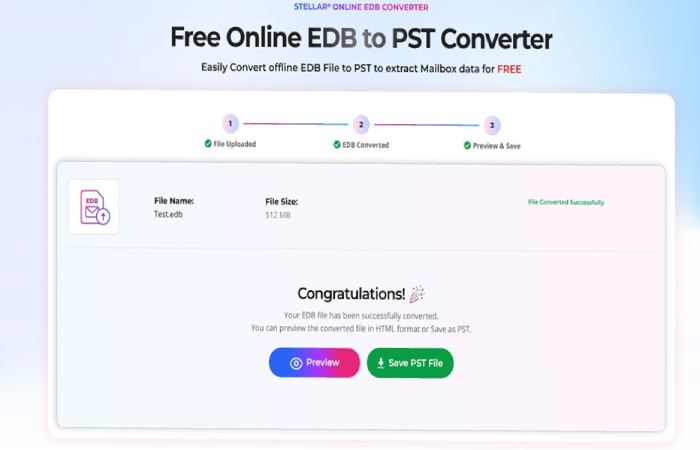
The online service covers one job, which is getting PST files out of an EDB. Stellar Converter for EDB is the desktop edition, and it is aimed at admins who do this regularly or need more than a PST at the end.
Online vs. Desktop: Which One Should You Use?
| Free Online | Premium Online | Desktop (Stellar Converter for EDB, Technician) | |
| Price | $0 | $99.99 for 10 mailboxes | $399 per year |
| Max EBB size | 500 MB | 5 GB | No size limit |
| Mailboxes | One EDB file per session | One EDB file per request (up to 10 mailboxes at the listed price) | Upto 500 mailboxes, multiple EDB files |
| Download window | 24 hours | 48 hours | Saved locally |
| Works offline | No | No | Yes |
| Export targets | PST | PST | PST, live Exchange and Microsoft 365 |
Final Thoughts
A failed New-MailboxExportRequest does not mean your mailbox data is out of reach. If the failure comes from a permission, a path, a filter or a dismounted database, the troubleshooting steps above will usually get the export working again. If the server is gone, the database will not mount, or the cmdlet keeps failing, you do not have to rebuild an Exchange environment to get your data back.
The Stellar Online EDB to PST Converter lets you upload an EDB file, preview its mailboxes, and download them as PST files, all from a browser and free for files up to 500 MB. If your database is larger or you need to convert several, Stellar Converter for EDB removes the size limits, works offline, and can export to PST, live Exchange and Microsoft 365.